
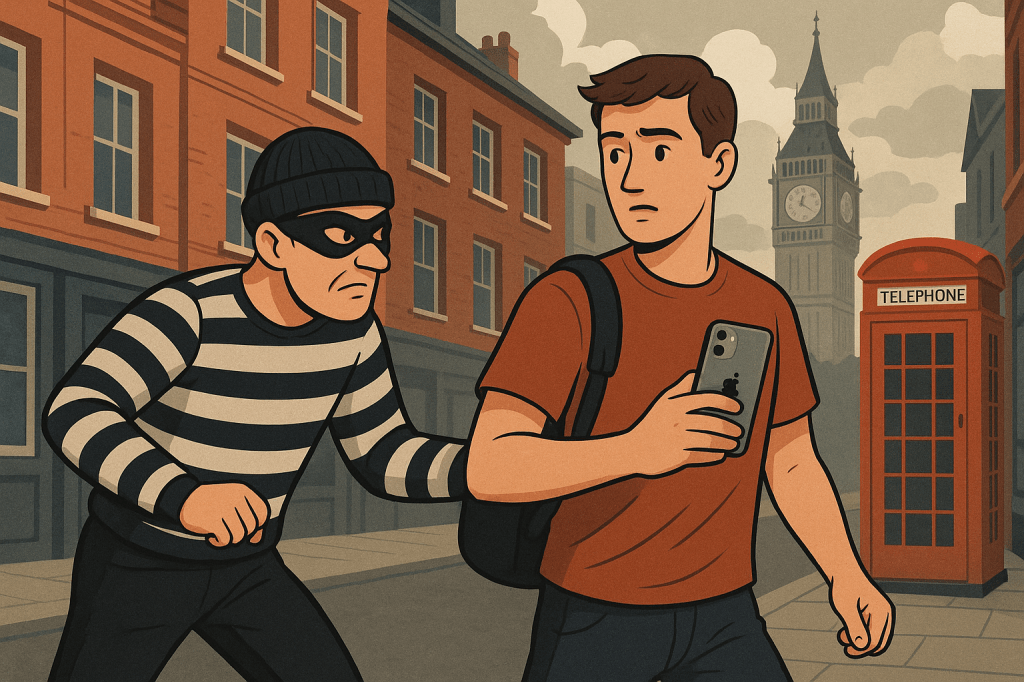
Smartphones have become far more than communication devices – they’re the keys to our digital lives. Banking apps, email, photos, passwords, health data, even the ability to unlock your front door or car – all of it may be accessible through your iPhone. That makes losing it to theft or opportunistic “shoulder surfing” more dangerous than ever.
Apple has long offered features like Find My iPhone and Activation Lock to deter theft, but recent reports of thieves exploiting people’s passcodes to lock them out of their accounts have shown gaps in that armour. This is where Apple’s Stolen Device Protection comes in – and why you should enable it immediately.
What is Stolen Device Protection?
Stolen Device Protection (SDP) is an iOS feature released in an update to iOS17 back in January 2024, it is designed to protect you if someone gains access to your iPhone and your passcode. Once enabled, it adds an extra layer of biometric security (Face ID or Touch ID) for sensitive actions, such as:
- Use passwords or passkeys saved in Keychain
- Use payment methods saved in Safari (AutoFill)
- Turn off Lost Mode
- Open a locked app
- Erase all content and settings
- Apply for a new Apple Card
- View your Apple Card or Apple Cash virtual card number
- Take certain Apple Cash and Savings actions in Wallet (for example, Apple Cash or Savings transfers)
- Use your iPhone to set up a new device (for example, Quick Start)
- Set up or transfer an eSIM
*Note that you can still use your iPhone passcode for purchases with Apple Pay.
Crucially, if these actions are attempted when the phone is away from a familiar location (such as your home or workplace), Apple enforces a security delay – requiring another biometric authentication an hour later. This cooling-off period makes it much harder for a thief to quickly take over your digital identity and applies to the following:
- Change your Apple Account password
- Sign out of your Apple Account
- Update Apple Account security settings (such as adding or removing a trusted device, Recovery Key or Recovery Contact)
- Add or remove Face ID or Touch ID
- Change your passcode
- Reset All Settings
- Enrol in Mobile Device Management
- Turn off Stolen Device Protection
Your iPhone may end the security delay early after it detects that you’ve arrived at a familiar location.
Why You Should Enable It
- Passcode theft is real Criminals have been known to watch people enter their passcode in public, then snatch the device. According to recent BBC reporting, there were, over 80,000 mobile phones stolen in London alone last year! With only the passcode, they could previously change Apple ID credentials and lock the rightful owner out for good and empty their bank accounts in the process. SDP makes this attack far less effective.
- Your Apple ID is the crown jewel Once someone controls your Apple ID, they effectively control your Apple ecosystem: your backups, photos, purchases, and potentially even your identity. SDP raises the bar by requiring Face ID/Touch ID, not just a code.
- It buys you time The enforced security delay stops criminals from immediately hijacking your device. That gives you precious time to act – like using another device to mark it lost in Find My iPhone or contacting Apple Support.
Take it Further: Lock Your Apps with Face ID
Even without SDP, many sensitive apps already require biometric login. But what about the ones that don’t? Apple allow you to “lock” any app behind Face ID, Touch ID, or your passcode to open the app.
- Locate the app you want to lock.
- Touch and hold the app icon until the quick actions menu opens.
- Tap Options, then tap Require Face ID (or Touch ID or Passcode).
*Note, some of the apps that come with iPhone can’t be locked, including Calculator, Camera, Clock, Contacts, Find My, Maps, Shortcuts, and Settings.
Best Apps to Lock with Face ID
If you’re going to apply per-app Face ID locks, here are the highest-value targets:
- Email apps (iCloud Mail, Gmail, Outlook, etc.) These are the keys to your digital identity. A thief with access could reset passwords for Apple ID, banking, and countless other services.
- Messaging apps (iMessage, WhatsApp, Signal, Telegram, etc.) Stops criminals impersonating you to request money or sensitive info, and protects your private conversations.
- Work apps (Outlook, Teams, Slack, Zoom, SharePoint, etc.) If your phone connects to company systems or client data, protecting those apps prevents a personal theft turning into a corporate breach.
- Shopping & payment apps (Amazon, eBay, PayPal, etc.) These often store payment cards and one-tap checkout details. A lock stops opportunistic spending sprees.
- Cloud storage apps (Dropbox, Google Drive, OneDrive, iCloud Drive) Your personal and professional files may be just as valuable as your finances. Locking them adds a critical barrier.
Why This Matters with Stolen Device Protection
- SDP alone: stops thieves from replacing your biometrics or taking over your Apple ID immediately.
- App Lock: walls off individual apps – meaning even if they get past your home screen, they’ll hit another biometric check.
- Together: you force an attacker to bypass multiple biometric and time-delay barriers to reach your most sensitive data.
How to Turn On Stolen Device Protection
- Open Settings on your iPhone.
- Go to Face ID & Passcode (or Touch ID & Passcode).
- Enter your device passcode.
- Scroll down to Stolen Device Protection and toggle it on.
That’s it – you’ve added a serious line of defense between your data and a would-be thief.
Final Thoughts
Enabling Stolen Device Protection isn’t just about keeping your iPhone safe – it’s about protecting your digital life. When combined with per-app Face ID locks, you’re making it much harder for organised criminals to disrupt your life beyond the initial theft of your device.
This feature is free, virtually invisible in daily use, and dramatically improves your security. The real question isn’t “Why should I turn it on?” – it’s “Why wouldn’t I?”
I should point out that I’ve singled out Apple’s Stolen Device Protection, purely because I’m entrenched in their walled garden, if you are an Android user, they have similar protections which you can enable, click here to find out more.
 Joe Tiedeman
Leave a comment