
TL;DR
I was looking for an inexpensive way to get access to a lot of CPU compute, as inexpensively as I could in order to process a load of data for an upcoming research project, knowing that the compute would be needed for an extended period of time (weeks/months rather than hours/days) and being budget conscious, I was looking for the most effective way to spend the least amount of money possible. I looked at a number of options, even how much could I justify to buy some hardware up front, enter Azure Spot Instances.
Spot Instances are Microsoft’s way to monetise unused capacity in Azure data centres around the world, you can get compute for example, 32 cores and 128GB that would normally cost you £1000 a month for potentially £100, yes that’s right that’s a possible 90% discount, I’ll say that again and let it sink in, 90%!!! Now it should be noted in all this lovely cost saving that you’ll still pay the normal price for storage, bandwidth etc etc, you’re only saving money on the compute costs – in the vast majority of situations, that’ll be the vast majority of your cost. Just keep it in mind though!
The astute among you might be thinking “what’s the catch?”, and you’d be right, Microsoft can, and will, yank the compute out from under you at almost literally a moment’s notice, more on that later, if you want to read on!
Nitty-gritty
You have two options when choosing how you want to pay for Spot Instances:-
- You can set a maximum budget and as soon as the price for running the VM gets above your bugdet, Microsoft will evict/deallocate it.
- Accept price fluctuations and keep the VM running until Microsoft actually need to compute.
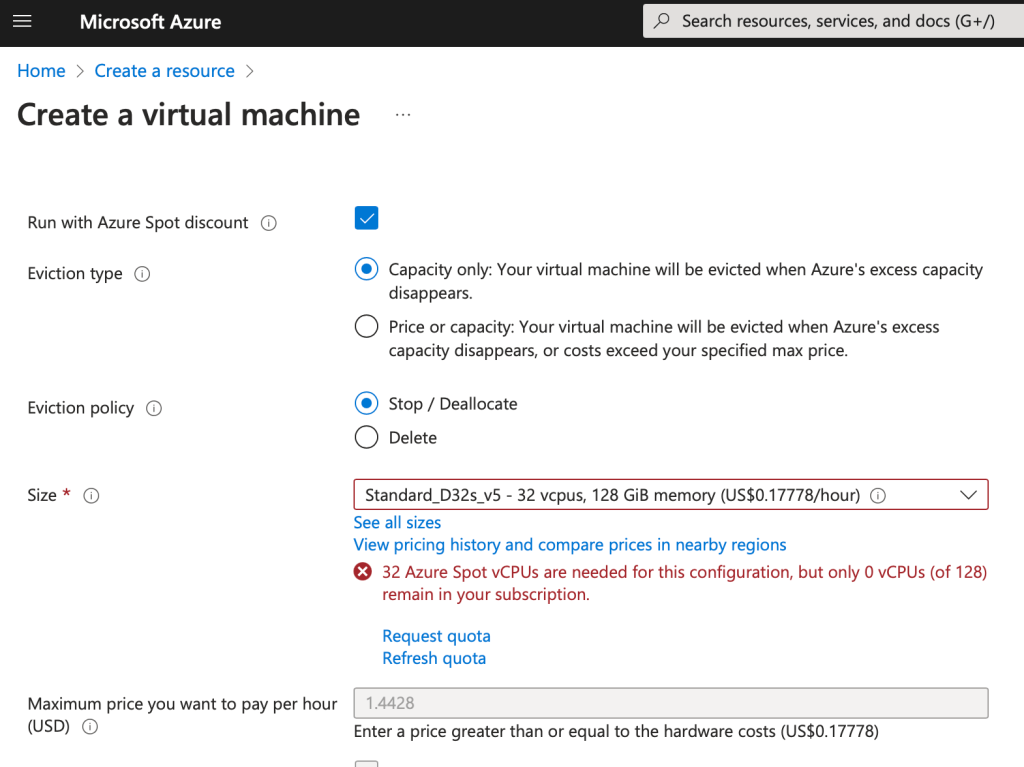
If you think the first option sounds a bit like a variable rate mortgage or the stock market, you’d be right, Microsoft understandably vary the pricing based on the availability of capacity and the requirements for it. It’s basic supply and demand but it is a bit of a win-win situation, Microsoft get money for unused capacity and if you have a workload that can be tailored to interruptible patterns then you can get your work done at relatively very low cost.
The Catch (if you’re not expecting it)
If you want to develop your workloads using Spot Instances then you should consider querying the Azure Metadata Service on a regular basis, below is a snippet of C# which polls the service every 5 seconds and will send an email if Azure needs to take the capacity back by sending the “Preempt” event. Obviously in your own code, you’ll want to cancel outstanding tasks, update application state, save files etc, you’ll have a maximum of 30 seconds before the VM is shutdown, so get on it ASAP!
There are of course other event that you can look for and handle alongside Preempt and multiple events can be returned at the same time:-
- Freeze – the VM will be frozen.
- Reboot – the VM will rebooted
- Redeploy – the VM will be redeployed to different hardware.
- Terminate – he VM will be deleted, this is user initiated, either through the portal or automation of some sort.
Preempt gets 30 seconds to handle, the other events will give 5 minutes before they kick in.
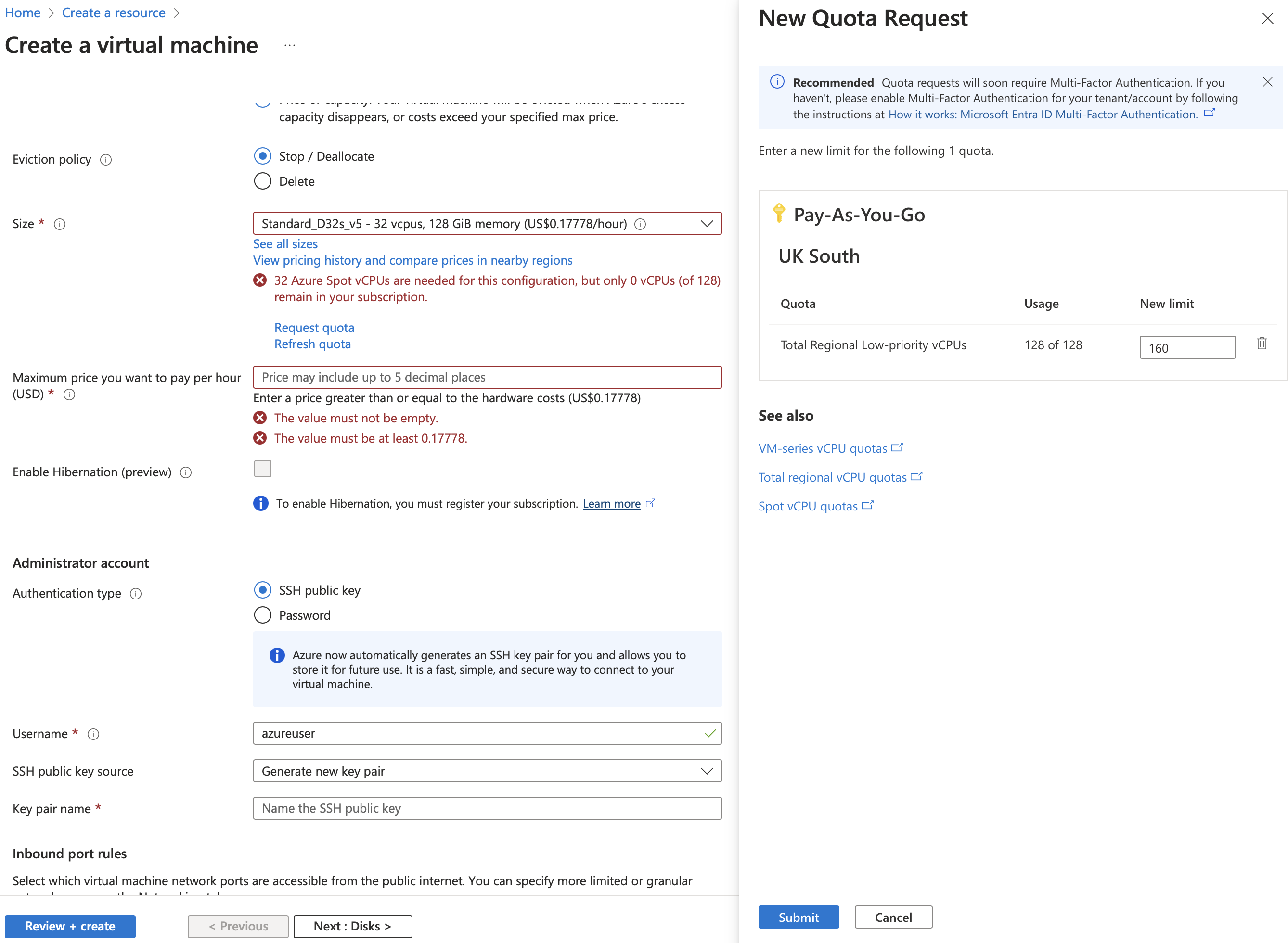
Depending on your subscription type, the region you deploy your resources to etc, you may have a quota of the number of cores that you’re allowed to deploy using spot instances, this is easily done by creating a support request in the Azure Portal:-
What does this mean for me?
There are many ways that I think these instances can be used, as long as your workload is interruptible in some way then you can exploit this fully with some sort of orchestrator, running a much smaller VM, or a timer/event based Azure Function which monitors the number of Spots running.
I’m thinking about putting together some code to demonstrate this, leave a comment and let me know if this is something you’d be interested in.
Code
using SendGrid;
using SendGrid.Helpers.Mail;

class Program
{
    private static readonly HttpClient httpClient = new HttpClient();
    private static readonly string metadataServiceUrl = "http://169.254.169.254/metadata/scheduledevents?api-version=2020-07-01";
    private static readonly TimeSpan pollingInterval = TimeSpan.FromSeconds(5);
    // Replace with your actual API key
    private static readonly string sendGridApiKey = "SG.";
    // Replace with your email
    private static readonly string fromEmail = "notificationsender@example.com";
    // Replace with the recipient's email
    private static readonly string toEmail = "notificationrecipient@example.com";

    static async Task Main(string[] args)
    {
        Console.WriteLine("Starting to monitor for shutdown events...");

        while (true)
        {
            try
            {
                var scheduledEvents = await GetScheduledEventsAsync();
                if (scheduledEvents.Contains("Preempt"))
                {
                    Console.WriteLine("Preemption notification received. Sending email...");
                    await SendEmailAsync("Preemption Notification", "Your Azure Spot Instance is about to be preempted.");
                    // Add any additional shutdown logic here
                    break;
                }
            }
            catch (Exception ex)
            {
                Console.WriteLine($"Error while checking for scheduled events or sending email: {ex.Message}");
            }

            Thread.Sleep(pollingInterval);
        }

        Console.WriteLine("Application is shutting down.");
    }

    private static async Task<string> GetScheduledEventsAsync()
    {
        using var requestMessage = new HttpRequestMessage(HttpMethod.Get, metadataServiceUrl);
        requestMessage.Headers.Add("Metadata", "true");

        var response = await httpClient.SendAsync(requestMessage);
        response.EnsureSuccessStatusCode();

        return await response.Content.ReadAsStringAsync();
    }

    private static async Task SendEmailAsync(string subject, string messageBody)
    {
        var client = new SendGridClient(sendGridApiKey);
        var from = new EmailAddress(fromEmail);
        var to = new EmailAddress(toEmail);
        var message = MailHelper.CreateSingleEmail(from, to, subject, messageBody, messageBody);
        var response = await client.SendEmailAsync(message);

        if (response.IsSuccessStatusCode)
        {
            Console.WriteLine("Email sent successfully.");
        }
        else
        {
            Console.WriteLine($"Failed to send email. Status Code: {response.StatusCode}");
        }
    }
} Joe Tiedeman
Leave a comment